Before you can compete for the highest score in Be A Voice Actor, you need to clear the platform-level roblox voice chat requirements that Roblox enforces outside the experience itself. The official game page confirms that voice chat is required to compete, which means a missing toggle or greyed-out microphone icon blocks you from scoring rounds entirely. Understanding age verification, device support, and account settings saves you from queuing into a lobby only to discover you cannot make a sound.
Why Roblox Voice Chat Requirements Gate Be A Voice Actor
The core reason this experience demands voice verification is structural: Be A Voice Actor is built around imitation and scoring, so a silent player cannot participate in the central loop. The official Roblox listing states that voice chat is required to compete, and the About text frames the entire game around phrases like "Compete To Become The Best Voice Actor!" and "Imitate Popular Sounds!" without any text-based fallback for scoring rounds.
This design choice means the roblox voice chat requirements are not optional tweaks but hard prerequisites. A player who has not completed platform voice verification cannot take part in a scoring round, regardless of how well they know the sound prompts. The experience does not ship a silent mode, a text chat alternative, or an offline practice queue that feeds into the leaderboard.
The practical consequence is that troubleshooting starts outside the game. Roblox keeps voice-chat experiences in their own discovery surface, and voice-enabled servers are only served to accounts that have passed platform voice verification. If you can see Be A Voice Actor in discovery but cannot hear anyone, the failure is almost always in your account settings rather than the experience itself.
| Requirement Layer | Where It Lives | What It Controls |
|---|---|---|
| Age verification | Roblox account settings | Unlocks the voice chat toggle |
| Device support | Roblox app or client | Whether the mic input is exposed |
| Parental controls | Account restrictions | Whether voice is blocked for minors |
| Experience gating | Be A Voice Actor listing | Whether you can join scoring rounds |
Age Verification and the Greyed Out Toggle
The most common blocker players report is a roblox voice chat greyed out toggle that never becomes clickable. This state almost always traces back to incomplete age verification on the Roblox account, because Roblox only enables spatial voice for users who have proven they are 13 or older through a government ID scan or supported verification flow.
When the toggle is greyed out, the account has not satisfied the platform's age gate. Roblox does not surface a detailed error message inside Be A Voice Actor, so players often assume the game is broken when the real issue sits in their profile settings. The fix is to open Roblox account settings, locate the voice chat section, and complete the verification prompt if it appears.
A related symptom is the roblox voice chat toggle missing entirely from the settings menu. This happens when the account is registered with an age under 13, when parental controls have disabled the feature, or when the client version does not support spatial voice. Checking the account birthdate and any linked parent restrictions resolves most missing-toggle cases before you ever launch the experience.
How to Check Your Verification Status
The verification status lives in the same place as the toggle, so a quick settings review tells you whether you are blocked by age, region, or device. Community reports suggest that players who complete verification while Be A Voice Actor is open need to fully restart the Roblox client before the toggle registers as active.
-
Open Roblox settings from the gear icon or the main menu
-
Navigate to the privacy or voice chat section
-
Look for a verification prompt or a greyed-out toggle state
-
Complete the ID scan if the prompt appears
-
Restart the Roblox client and relaunch Be A Voice Actor
Device Support and Mobile Limitations
Roblox voice chat device support varies by platform, and the experience inherits whatever the client exposes. Desktop players on Windows or macOS generally have the most reliable microphone routing, while mobile users face additional permission layers that can silently block input even when the account is fully verified.
The roblox voice chat mobile support picture is more fragmented than desktop. iOS and Android both support spatial voice in the Roblox app, but the operating system must grant microphone permission to the app before any game can capture audio. A player who denies the mic permission at the OS level will see the voice icon but produce no sound, which is a common source of confusion in Be A Voice Actor lobbies.
Console support is the narrowest path. Xbox and PlayStation clients have historically lagged desktop and mobile for spatial voice features, and some console builds do not expose the voice toggle at all. If you plan to play Be A Voice Actor on a console, verify that your platform's Roblox client actually lists voice chat in settings before investing time in age verification.
| Platform | Voice Chat Support | Common Blocker |
|---|---|---|
| Windows PC | Full support | Mic permission in browser or app |
| macOS | Full support | OS-level mic privacy setting |
| iOS | Supported | App mic permission denied |
| Android | Supported | App mic permission or battery saver |
| Xbox | Limited or absent | Client version without voice toggle |
| PlayStation | Limited or absent | Client version without voice toggle |
Fixing the Mic Not Working Problem
A roblox voice chat mic not working symptom inside Be A Voice Actor usually has one of three causes: the OS is blocking the microphone, the Roblox client has not been granted input access, or the in-game voice indicator is not registering because the account lacks verification. Isolating these layers in order resolves most cases without reinstalling anything.
The first check is the operating system privacy panel. Windows, macOS, iOS, and Android all maintain a per-app microphone permission list, and Roblox must appear there with access enabled. A denied permission at this layer produces silence in every voice-enabled experience, not just Be A Voice Actor, which is a useful diagnostic signal.
The second check is the Roblox client itself. Even with OS permission granted, the client can fail to detect a microphone if the wrong input device is selected or if a Bluetooth headset is paired but not set as the default recording device. Switching the default input in system sound settings and restarting the client clears this state for most players.
Step-by-Step Mic Recovery Flow
When the mic works in other apps but not in Roblox, the issue is almost always client-side routing rather than hardware failure. Following a fixed sequence prevents the common mistake of changing multiple settings at once and losing track of what fixed the problem.
-
Confirm the mic works in a system voice recorder or another app
-
Check OS privacy settings and enable Roblox microphone access
-
Set the correct input device as system default
-
Restart the Roblox client completely, not just the experience
-
Launch Be A Voice Actor and watch for the voice indicator to light up
-
If still silent, revisit age verification and the voice toggle state
Voice Chat Rules, Regions and Account Checks
The roblox voice chat settings panel controls more than just an on-off switch. It includes the verification status, the toggle itself, and sometimes a voice input device selector depending on the client version. Knowing what each control does prevents you from mistaking a settings misconfiguration for a game bug.
The toggle is the master switch. When it is off, no voice-enabled experience can capture your microphone, and Be A Voice Actor will treat you as a silent player even if your account is verified. When it is on but greyed out, verification is incomplete. When it is on and active but you still produce no sound, the problem moves to device permissions or input routing.
Parental controls add another layer that many players overlook. A parent-managed account can have voice chat disabled at the restriction level, which removes the toggle from the child's settings entirely. The child sees a missing toggle, assumes the feature does not exist, and never realizes the parent account holds the switch.
| Setting | Normal State | Problem State | What It Means |
|---|---|---|---|
| Voice chat toggle | On and clickable | Greyed out | Age verification incomplete |
| Voice chat toggle | On and clickable | Missing | Parental control or under-13 account |
| Mic permission | Granted to Roblox | Denied | OS blocking input |
| Input device | Correct mic selected | Wrong device | Client routing failure |
| In-game indicator | Lights up when speaking | Never lights | Account or client issue |
What the Official Page Confirms About Voice Requirements
The official Be A Voice Actor game page is the authoritative source for the experience's voice policy, and it is unambiguous: voice chat is required to compete. The listing also confirms auto-saving progress and special gamepasses with exclusive perks, but none of those features matter if you cannot pass the voice gate.
The developer group, Be A Voice Actor by Frameworks, is the only official community channel according to the research sweep. The group has around 9,000 members and uses its wall to announce updates, which makes it the place to watch for changes to voice requirements or new sound prompt rotations. Joining the group grants the Join The Group badge and keeps you informed when the developer adjusts the experience.
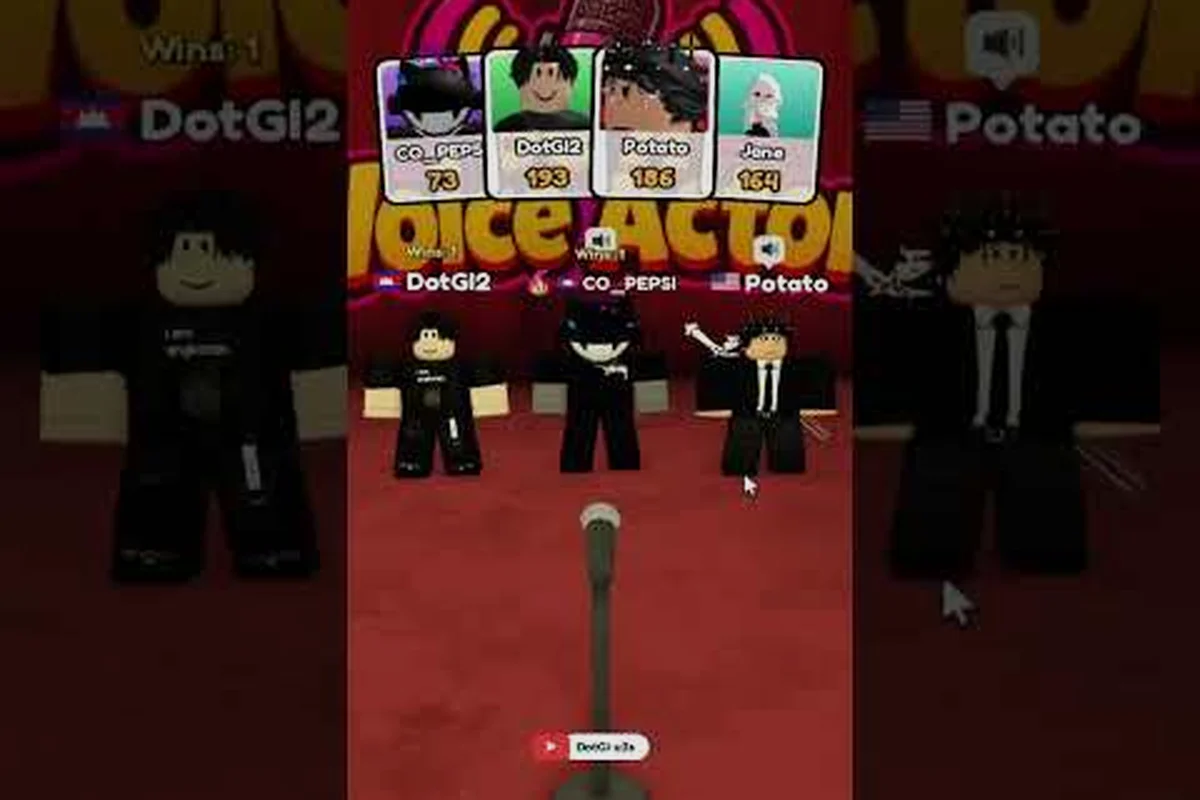
For a visual reference of what a scoring round looks like when voice is working correctly, the most-viewed English gameplay upload comes from the Enki Army gameplay clip. Watching a full round in motion clarifies how the voice indicator behaves and what the scoring feedback looks like, which helps you recognize a healthy voice setup before you queue.
Preparing Your Setup Before You Queue
A few minutes of preparation before joining Be A Voice Actor prevents the frustrating loop of entering a lobby, discovering silence, and backing out to fix settings. The microphone setup guide covers input sensitivity and background noise in depth, but the core pre-flight check is simpler.
Start with the account layer: verify age, confirm the toggle is on and clickable, and check that no parental restriction is hiding the feature. Then move to the device layer: grant OS microphone permission, select the correct input device, and test in a system recorder. Finally, launch the experience and watch for the voice indicator before joining a scoring round.
Players who skip the account layer and jump straight to device troubleshooting often waste time changing audio settings that were never the problem. The roblox voice chat requirements are hierarchical, and the age verification gate sits above everything else. If the toggle is greyed out, no amount of microphone tweaking will produce sound.
| Pre-Flight Check | Where to Look | Pass Condition |
|---|---|---|
| Age verification | Roblox settings | Toggle is clickable, not greyed out |
| Parental controls | Parent account or restrictions | Voice chat not disabled |
| OS mic permission | System privacy settings | Roblox listed with access enabled |
| Input device | System sound settings | Correct mic set as default |
| In-game indicator | Be A Voice Actor lobby | Indicator lights when you speak |
Frequently Asked Questions
Why is my roblox voice chat greyed out?
A greyed out toggle means your account has not completed age verification. Roblox only enables spatial voice for users who prove they are 13 or older through a supported verification flow. Complete the ID scan in account settings, then restart the client and relaunch the experience.
Why is the roblox voice chat toggle missing from my settings?
A missing toggle usually indicates an under-13 account or a parental control that disabled voice chat. Check the account birthdate and any linked parent restrictions. If a parent manages the account, the parent must enable voice chat from their own restriction settings.
Does Be A Voice Actor support mobile voice chat?
Yes, iOS and Android both support spatial voice in the Roblox app, but the operating system must grant microphone permission first. A denied app-level permission produces silence even when the account is fully verified. Check the OS privacy panel and enable Roblox microphone access.
Why is my mic not working in Be A Voice Actor but working elsewhere?
This points to client-side routing rather than hardware failure. Confirm Roblox has microphone permission at the OS level, set the correct input device as system default, and restart the client completely. Bluetooth headsets often need to be set as the default recording device before Roblox detects them.
Can I play Be A Voice Actor without voice chat?
No. The official game page states that voice chat is required to compete, and the experience has no text-based fallback for scoring rounds. You can browse the lobby without voice, but you cannot participate in the imitation and scoring loop until your account passes platform verification.