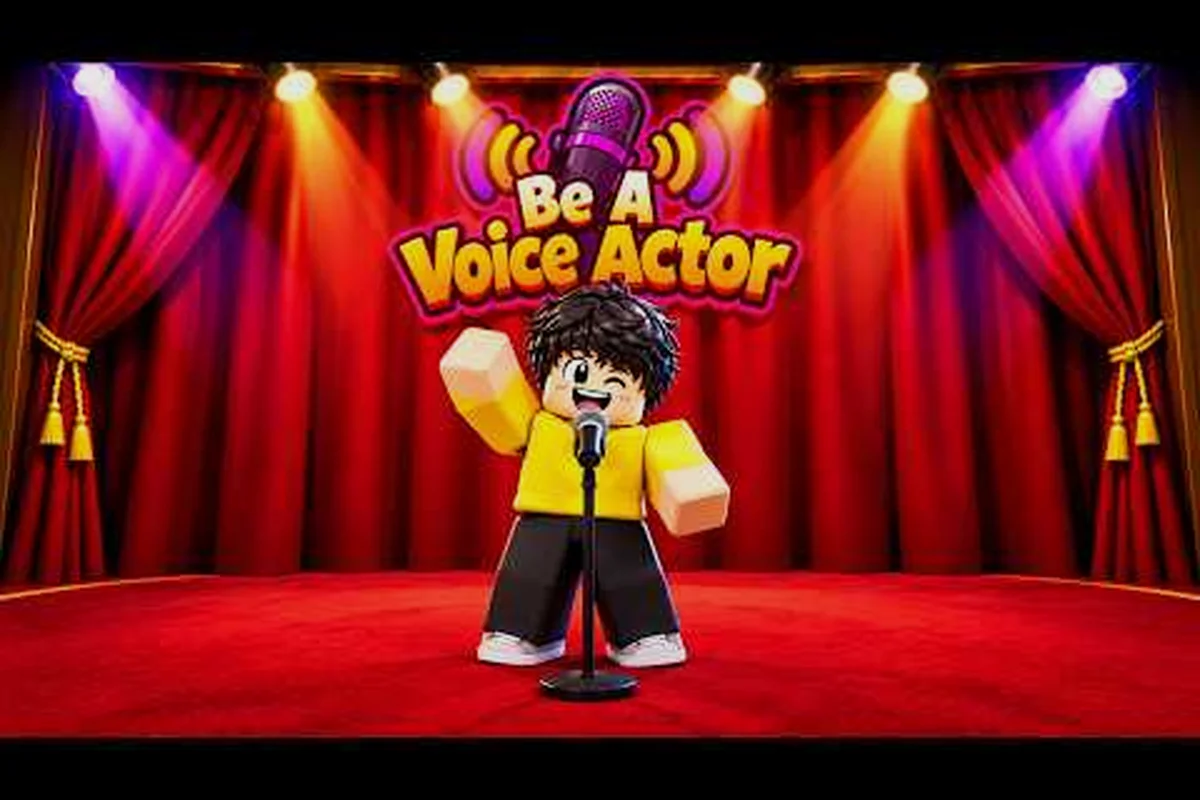
Getting Be A Voice Actor working on PC requires more than just joining a server, because Roblox voice chat depends on account verification, device permissions, and platform-specific audio routing. The official game page confirms that Voice Chat is required to compete, which means a misconfigured microphone or an unverified account locks you out of scoring rounds entirely. This guide breaks down the exact PC setup path, compares console behavior on Xbox and PlayStation, and explains the moderation rules that can trigger a roblox voice chat ban.
According to the Be A Voice Actor experience page on Roblox, the game requires PC players to have a working microphone and Roblox’s spatial voice feature enabled before they can audition for roles or use voice chat in-game.
Understanding Roblox Voice Chat PC Requirements
Before you can imitate popular sounds and chase the highest score in Be A Voice Actor, your Roblox account must pass platform voice verification. The official Roblox listing states that voice chat is required to compete, so any player who has not completed verification cannot take part in a scoring round. On PC, this verification flow lives entirely inside Roblox account settings rather than the experience itself, which is why many players open the game, see a silent lobby, and assume their microphone is broken.
The core requirements for roblox voice chat pc access are straightforward but easy to miss. First, your account needs a verified email address and phone number. Second, you must be age-verified, which typically requires a government-issued ID in supported regions. Third, the voice chat toggle must be enabled in privacy settings. Fourth, your Windows microphone privacy settings must allow desktop apps to access the input device, because Roblox runs as a desktop application rather than a browser-only tool.
| Requirement | Where to Check | Common Failure Point |
|---|---|---|
| Verified email | Roblox account settings | Verification link expired or sent to spam |
| Verified phone | Roblox account settings | Country code entered incorrectly |
| Age verification | Roblox identity portal | ID photo blurry or region unsupported |
| Voice chat toggle | Privacy settings | Toggle hidden until age verification passes |
| Windows mic access | Windows Settings > Privacy > Microphone | Desktop app access disabled globally |
The Windows microphone permission layer is the most frequent silent killer for PC players. Even when Roblox shows a green microphone icon, Windows can block the actual audio stream if the "Let desktop apps access your microphone" switch is off. Community reports consistently point to this setting as the first fix to try when your voice works in Discord but not inside Be A Voice Actor.
PC Input and Output Device Configuration
Roblox does not expose a dedicated audio device picker inside most experiences, which means Be A Voice Actor inherits whatever input and output devices Windows designates as default. This design choice creates a common failure pattern: players plug in a USB headset, join a round, and hear game audio through speakers while their microphone stays dead because Windows still routes input through a webcam or built-in laptop mic.
The correct setup sequence starts before launching Roblox. Open Windows Sound settings, then set your headset as both the default output device and the default input device. Next, open the classic Sound Control Panel, disable any unused recording devices, and set your headset microphone as the default communication device. This second step matters because Roblox uses the Windows communication device for voice chat in many builds, and leaving a webcam mic as the default communication device causes exactly the kind of silent-lobby confusion players report on community forums.
| Device Type | Recommended Setting | Why It Matters |
|---|---|---|
| Headset mic | Default communication device | Roblox routes voice through this channel |
| Webcam mic | Disabled | Prevents input conflicts and echo |
| Stereo mix | Disabled | Eliminates background audio bleed |
| Headset output | Default device | Keeps game and voice audio together |
| Sample rate | 48,000 Hz | Matches Roblox voice processing pipeline |
After configuring Windows, launch Roblox and check the in-experience voice indicator. In Be A Voice Actor, your avatar should show a speaking animation when you talk, and other players should confirm they can hear you during the lobby phase. If the indicator stays dark, the voice chat fix guide covers the step-by-step troubleshooting flow for silent lobbies, echo problems, and microphone permission resets.
Console Support: Xbox and PlayStation Differences
Roblox voice chat console support differs significantly between Xbox and PlayStation, and understanding these differences prevents wasted setup time. On Xbox, Roblox voice chat uses the console's built-in party and microphone routing, which means you need a headset connected to the controller or a USB audio device recognized by the Xbox system. The Xbox version does not support keyboard-based push-to-talk, so your microphone is always hot during a round unless you mute yourself through the console quick menu.
PlayStation support follows a similar pattern but adds an extra permission layer. The PlayStation system software asks for microphone access permission the first time Roblox launches, and denying that prompt silently blocks voice chat even when your Roblox account is fully verified. Players who skip the initial permission dialog often need to reset the app permissions through the PlayStation settings menu before voice chat activates.
| Platform | Mic Routing | Push-to-Talk | Verification Requirement | Common Issue |
|---|---|---|---|---|
| PC | Windows default devices | Not available in-game | Roblox age verification | Windows privacy block |
| Xbox | Controller or USB headset | Console mute only | Roblox age verification | Headset not assigned to profile |
| PlayStation | Controller or USB headset | Console mute only | Roblox age verification | System mic permission denied |
The roblox voice chat xbox experience also inherits Xbox Live privacy settings, which can override Roblox account settings. If your Xbox profile restricts communication with non-friends, you may hear nothing in Be A Voice Actor even though your Roblox account passes every check. Similarly, roblox voice chat playstation sessions depend on the PlayStation Network account age and parental control settings, so a child account with communication restrictions will not gain voice access simply by verifying inside Roblox.
Moderation Rules and Ban Triggers
Roblox enforces voice chat moderation through a combination of automated systems and user reports, and Be A Voice Actor is subject to the same platform-wide rules as every other voice-enabled experience. The official the Roblox discovery listing for voice chat games page confirms that voice-enabled servers are only served to accounts that have passed verification, but verification does not grant immunity from moderation. A verified account can still receive a roblox voice chat ban for violating community standards during a scoring round.
The most common ban triggers reported by players include hate speech, sexual content, harassment, and sharing personal information. Roblox voice chat rules also prohibit evading a previous ban by creating alternate accounts, and the platform actively links accounts through device fingerprints and payment methods. Because Be A Voice Actor rewards dramatic performances and imitation, some players push into inappropriate territory without realizing that the same microphone that earns points also feeds the moderation system.
| Violation Type | Typical Consequence | Appeal Possibility |
|---|---|---|
| Hate speech | 1-7 day voice suspension | Yes, via support form |
| Sexual content | 7 day to permanent ban | Limited, case-dependent |
| Harassment | 1-3 day suspension | Yes, first offense |
| Personal info sharing | Immediate suspension | Rarely overturned |
| Ban evasion | Permanent account termination | No |
The roblox voice chat suspended guide explains what happens after a suspension, including how to check your moderation status and what steps may restore access. Understanding the rules before you perform is far easier than appealing a ban after a round goes wrong, especially since Be A Voice Actor sessions are recorded and reviewed when reports are filed.
Optimizing Audio Quality for Scoring Rounds
Scoring in Be A Voice Actor depends on how clearly the game can interpret your performance, which means audio quality directly affects your leaderboard position. A muddy microphone, background noise, or an echo loop can make even a perfect imitation sound distorted to other players and to the scoring system. The echo fix guide addresses the specific problem of hearing your own voice loop back, which is one of the most disruptive issues during competitive rounds.
Start with microphone placement. Keep the mic about two to three inches from your mouth and slightly off-axis to reduce plosive pops. Enable noise suppression in Windows if your environment has consistent background noise like fans or keyboard clicks. For USB microphones, set the input gain low enough that your loudest performance does not clip, because distortion confuses the scoring algorithm and makes your imitation harder to recognize.
| Audio Problem | Likely Cause | Fix |
|---|---|---|
| Echo loop | Output bleeding into mic | Lower speaker volume or use headphones |
| Distortion | Input gain too high | Reduce gain to -12 dB peak |
| Background hum | Electrical interference | Use USB mic or ground loop isolator |
| Muffled voice | Mic too far or wrong side | Position 2-3 inches, off-axis |
| Sudden dropouts | USB power management | Disable USB selective suspend |
The official game page shows that Be A Voice Actor saves progress, Gems, and scores automatically between sessions, so a bad audio day does not erase your history. However, consistent audio quality across sessions builds the kind of score momentum that leaderboard players rely on, and fixing your PC audio chain once prevents repeated frustration in every future round.
Platform-Specific Setup Walkthroughs
Each platform requires a slightly different setup sequence, and following the wrong walkthrough wastes time. The PC path starts with Roblox account verification, moves through Windows device configuration, and ends with an in-game voice test. The console paths skip the Windows steps entirely but add their own system-level permission checks that PC players never encounter.
PC Setup Sequence
The PC sequence works best when followed in order, because each step unlocks the next. Start by verifying your Roblox account email and phone number, then complete age verification through the identity portal. Once the voice chat toggle appears in privacy settings, enable it and restart Roblox. Next, configure Windows default devices as described earlier, then launch Be A Voice Actor and test your microphone in the lobby before joining a scoring round.
Xbox Setup Sequence
On Xbox, connect your headset to the controller and assign it to your profile through the Xbox accessories menu. Check your Xbox Live privacy settings to confirm communication with non-friends is allowed, because this setting overrides Roblox permissions. Launch Roblox, verify that the voice indicator responds when you speak, then join Be A Voice Actor and confirm other players can hear you during the lobby phase.
PlayStation Setup Sequence
On PlayStation, connect your headset and accept the microphone permission prompt when Roblox first launches. If you denied the prompt previously, reset app permissions through the PlayStation settings menu. Confirm your PlayStation Network account does not have communication restrictions, then launch Roblox and test voice in the lobby. The roblox voice chat playstation flow is otherwise identical to Xbox once system permissions are cleared.
Frequently Asked Questions
Why is roblox voice chat pc not working even though my account is verified?
The most common cause is Windows microphone privacy settings blocking desktop app access. Open Windows Settings, navigate to Privacy, then Microphone, and confirm that "Let desktop apps access your microphone" is enabled. Also verify your headset is set as the default communication device in the Sound Control Panel.
Can I use roblox voice chat console features without a headset?
No, console voice chat requires a connected microphone. Xbox and PlayStation do not support built-in controller microphones for Roblox voice chat, so you need a headset connected to the controller or a USB audio device. The console routes voice through the system audio layer, which only activates when a microphone is detected.
What triggers a roblox voice chat ban during a Be A Voice Actor round?
Hate speech, sexual content, harassment, and sharing personal information are the primary ban triggers. Because Be A Voice Actor encourages dramatic performances, some players cross into inappropriate territory without realizing the moderation system records voice audio. A first offense typically results in a temporary suspension, while severe violations lead to permanent termination.
Does roblox voice chat xbox support push-to-talk?
No, Xbox does not support push-to-talk in Roblox voice chat. Your microphone stays active during the entire round unless you mute yourself through the console quick menu. This differs from some PC setups where players use external software for push-to-talk, though Roblox itself does not offer the feature on any platform.
How do I fix echo in Be A Voice Actor on PC?
Echo occurs when your microphone picks up audio from your speakers. Use headphones instead of speakers, lower your output volume, and enable noise suppression in Windows. If echo persists, check that stereo mix is disabled in your recording devices, because stereo mix routes system audio back into the microphone channel.