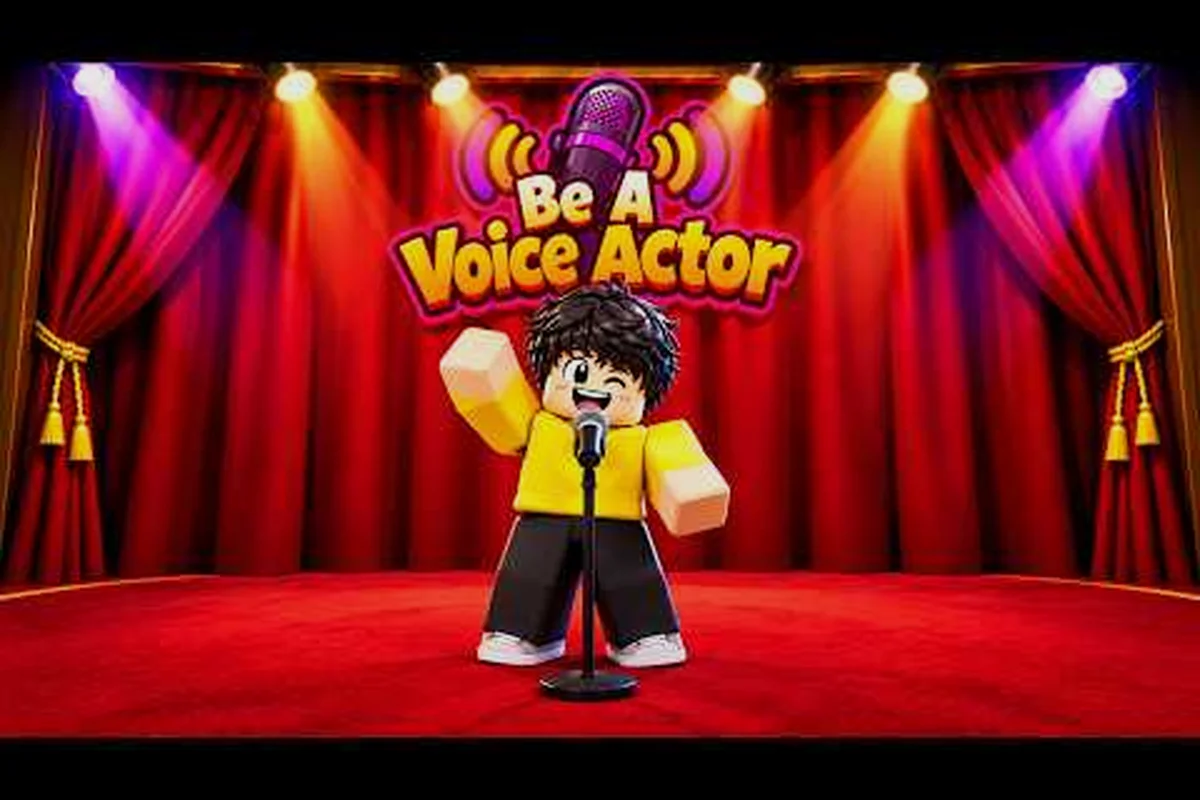
A clear microphone signal is the single biggest factor separating top-voted performances from ignored ones in Be A Voice Actor. When voters hear every breath, consonant, and emotional shift in your imitation, they rate you higher even if your actual voice range is narrower than another player's. This guide breaks down the exact be a voice actor microphone setup that fixes background noise, dials in mic sensitivity, and eliminates voice chat lag so your takes land cleanly every round.
Understanding Your Audio Chain Before You Touch Any Setting
Most players jump straight into Roblox settings and start flipping toggles, but a be a voice actor microphone setup actually starts with understanding the four-stage audio chain that carries your voice from your mouth to the voters' speakers. Each stage can introduce distortion, delay, or noise, and fixing the wrong stage wastes time while your scores stay flat.
The chain works like this: your input device captures sound, the operating system processes it through drivers and enhancements, the Roblox client applies its own voice chat processing, and the game server relays your signal to other players. A problem at any single point degrades everything downstream, which is why systematic troubleshooting beats random setting changes every time.
| Audio Chain Stage | Common Failure | Symptom in Game | Fix Priority |
|---|---|---|---|
| Input Device | Wrong mic selected, hardware defect | No signal, robotic voice | High |
| OS Processing | Enhancements active, driver conflict | Echo, muffled audio, clipping | High |
| Roblox Client | Mic permission denied, sensitivity off | Voters hear nothing, constant green bar | Medium |
| Game Server | High ping, packet loss | Choppy audio, delayed reactions | Medium |
According to the the Roblox voice chat discovery page, voice-enabled experiences only serve audio to accounts that have passed platform voice verification, which means your account-level setup matters just as much as your hardware. If you can see the game in discovery but nobody hears you, the issue almost always lives in Roblox account settings rather than inside Be A Voice Actor itself.
Choosing the Right Microphone for Voice Acting Rounds
The be a voice actor best mic question comes up constantly, and the honest answer is that a $30 headset mic tuned correctly will outperform a $300 condenser mic with bad gain staging. What matters more than price is the pickup pattern, the frequency response, and how consistently the mic captures your natural speaking range without requiring you to sit perfectly still.
For this game specifically, you want a mic that rejects sound from behind and beside the capsule, because most players perform in rooms with keyboard clicks, fan noise, and family members in adjacent spaces. Cardioid and supercardioid patterns do this best, while omnidirectional mics pick up everything and should be avoided unless you have a treated recording space.
| Mic Type | Pickup Pattern | Best For | Weakness |
|---|---|---|---|
| Headset Boom Mic | Cardioid | Consistent distance, built-in convenience | Limited upgrade path |
| USB Condenser | Cardioid/Supercardioid | Desk setup, richer tone | Needs pop filter, picks up desk vibrations |
| Dynamic Mic | Cardioid | Noisy rooms, untreated spaces | Lower sensitivity, needs closer placement |
| Laptop Built-in | Omnidirectional | Nothing — emergency only | Picks up keyboard, fan, room echo |
Community reports consistently show that players who switch from a laptop built-in mic to even a basic headset boom mic see their average round scores jump noticeably, because voters stop hearing keyboard clatter and start hearing the actual performance. The Be A Voice Actor official group page shows the developer uses group announcements for updates, but the core audio advice comes from player testing across thousands of rounds.
Positioning Your Mic for Consistent Levels
Mic placement matters more than mic price. Position the capsule two to three finger widths from the corner of your mouth, angled slightly off-axis so plosive sounds like "p" and "b" don't create harsh pops. Keeping the mic at a consistent distance prevents the volume swings that make voters reach for the mute button.
If you use a desk-mounted condenser, invest in a pop filter and a shock mount. The pop filter catches plosives before they hit the capsule, while the shock mount isolates the mic from desk bumps and keyboard vibrations that translate into low-frequency rumble in your signal.
Fixing Mic Sensitivity and Background Noise in Roblox
The be a voice actor mic sensitivity setting inside Roblox is where most players either overcorrect or undercorrect, and both mistakes hurt your scores. Sensitivity controls the threshold at which your mic activates and transmits audio, so setting it too high means every breath and background sound gets broadcast, while setting it too low cuts off the beginnings and ends of your words.
The goal is to find the activation threshold where your normal speaking voice triggers transmission instantly, but ambient room noise stays below the cutoff. Roblox shows a green indicator when your mic is actively transmitting, so you can watch that indicator while adjusting the sensitivity slider in real time.
| Sensitivity Setting | What Happens | When to Use |
|---|---|---|
| Too High | Background noise, breathing, keyboard all transmit | Never — annoys voters |
| Correct | Voice triggers instantly, silence stays muted | Always — this is the target |
| Too Low | Words get clipped, quiet passages drop out | Only if you have extreme background noise |
Beyond sensitivity, the be a voice actor background noise problem requires treating the source rather than just the threshold. Close doors and windows, turn off fans and air conditioners during rounds, and move your phone away from the mic. If you have persistent low-frequency hum, a high-pass filter at 80-100 Hz removes rumble without affecting vocal clarity, and many USB mics include this as a physical switch or software toggle.
Using Windows Audio Enhancements Correctly
Windows ships with several audio "enhancements" that actually hurt voice chat performance. Acoustic Echo Cancellation helps when you use speakers, but if you wear headphones it can introduce artifacts. Noise Suppression in Windows 11 works well for constant background noise but can make your voice sound slightly processed if pushed too hard.
Open your microphone properties, disable Audio Enhancements if you hear echo or metallic artifacts, and test your signal in a recording app before jumping into a round. A 30-second test recording reveals problems that live rounds hide, because you can listen back critically without the pressure of performing.
Eliminating Voice Chat Lag and Errors in Be A Voice Actor
The be a voice actor voice chat lag issue ruins timing-based performances, because voters hear your delivery half a second after they see your avatar react. Lag in voice chat comes from network latency, server load, or local processing delays, and each cause requires a different fix.
Start by checking your ping to Roblox servers using the in-game performance overlay. If your ping sits above 150ms, voice chat will feel delayed no matter what you do locally. Switching from Wi-Fi to a wired Ethernet connection removes the most common source of variable latency, because wireless interference causes the jitter that makes voice audio stutter.
| Lag Source | Symptom | Fix |
|---|---|---|
| Wi-Fi Interference | Audio stutters, drops mid-word | Use Ethernet or move closer to router |
| High Server Load | Everyone lags simultaneously | Switch to a less populated server |
| Local Processing | Your voice sounds delayed only to you | Close background apps, disable enhancements |
| Packet Loss | Choppy audio, missing syllables | Check connection quality, restart router |
The be a voice actor voice chat error that most commonly blocks players from speaking at all is a microphone permission denial at the browser or OS level. Roblox runs through its own client, but the OS still controls which applications can access your microphone. If you see a voice chat error when joining a round, verify that Roblox has microphone permission in your system settings, then restart the client completely rather than just rejoining the game.
Troubleshooting Common Voice Chat Failures
When voice chat fails entirely, work through the chain in order. First, test your mic in a separate application like Windows Voice Recorder to confirm the hardware works. Second, check Roblox account settings to confirm voice chat is enabled and age verification passed. Third, check the in-game voice chat toggle inside Be A Voice Actor itself.
The Be A Voice Actor voice chat guide covers account-level voice verification in detail, including the age verification steps that must be completed before any voice-enabled experience will transmit your audio. If your account passes verification but the game still shows an error, the issue is almost certainly local to your device or network.
Voice Changer Options and When They Help or Hurt
The be a voice actor voice changer question splits the community, because some players use changers to extend their range while others find them distracting. A voice changer modifies your pitch, timbre, or adds effects before the signal reaches Roblox, which can help you hit character voices outside your natural range but also introduces latency and artifacts if configured poorly.
For most players, a voice changer is unnecessary because the game rewards vocal control and emotional delivery more than raw pitch range. Voters respond to believable character work, and a slightly imperfect natural voice usually beats a heavily processed artificial one. If you do use a changer, keep the effect subtle and test for added latency, because every millisecond of processing delay makes your performance feel disconnected from your avatar.
| Voice Changer Approach | Benefit | Risk |
|---|---|---|
| No Changer | Zero latency, natural tone | Limited pitch range |
| Subtle Pitch Shift | Extends range slightly | Minor artifacts, small latency |
| Heavy Effects | Dramatic character voices | Obvious processing, significant lag |
| Hardware Voice Changer | Lower latency than software | Expensive, limited flexibility |
The Be A Voice Actor improvement guide goes deeper into vocal training and practice routines that expand your natural range without any processing, which most top performers consider the better long-term investment.
Building a Complete Be A Voice Actor Microphone Setup Routine
A consistent pre-round routine prevents most audio problems before they cost you votes. Spend 60 seconds before your first round checking the critical points, and you will avoid the mid-round panic of discovering your mic was muted or your sensitivity reset after a Roblox update.
| Routine Step | What to Check | Time |
|---|---|---|
| Hardware Check | Mic connected, boom positioned, pop filter in place | 10 seconds |
| OS Check | Correct input device selected, enhancements off | 15 seconds |
| Roblox Check | Voice chat enabled, sensitivity set, green bar responds | 20 seconds |
| Test Phrase | Say a line with plosives and sibilants, listen for pops | 15 seconds |
The Roblox voice chat requirements guide explains the platform-level settings that must be configured before any game-specific setup matters, including device support and the voice chat toggle that sometimes disappears after updates.
Adapting Your Setup for Different Performance Styles
Different rounds in Be A Voice Actor demand different vocal approaches, and your mic setup should flex to match. For whisper-heavy performances, raise sensitivity slightly and move closer to the mic so quiet passages don't drop out. For shouting or high-energy characters, lower sensitivity and back off the mic to avoid clipping and distortion.
Test your loudest and quietest lines before each session, because that range defines whether your sensitivity setting works for the full performance. A setting that handles normal speech perfectly might clip on a scream or drop a whisper, and voters notice both failures immediately.
Frequently Asked Questions
What is the best microphone for Be A Voice Actor?
A headset boom mic with a cardioid pattern is the best starting point because it maintains consistent distance and rejects room noise. USB condenser mics offer richer tone for desk setups, but they require a pop filter and shock mount to avoid plosives and vibration rumble. Laptop built-in mics should be avoided entirely.
How do I fix background noise in Be A Voice Actor?
Close doors and windows, turn off fans and air conditioners, and move your phone away from the mic. Set Roblox mic sensitivity so your normal speaking voice triggers transmission while ambient noise stays below the threshold. A high-pass filter at 80-100 Hz removes low-frequency hum without affecting vocal clarity.
Why is my voice chat lagging in Be A Voice Actor?
Voice chat lag usually comes from Wi-Fi interference, high ping to Roblox servers, or local processing delays from audio enhancements. Switch to a wired Ethernet connection, check your ping in the performance overlay, and disable Windows audio enhancements. If everyone in the server lags simultaneously, switch to a less populated server.
Can I use a voice changer in Be A Voice Actor?
Yes, but most top performers avoid heavy voice changers because they introduce latency and artifacts that disconnect your delivery from your avatar. A subtle pitch shift can extend your range slightly, but vocal training and emotional delivery matter more to voters than processed effects. Test any changer for added delay before using it in rounds.
Why does Be A Voice Actor show a voice chat error when I join?
The most common cause is a microphone permission denial at the operating system level. Verify that Roblox has microphone access in your system settings, confirm your account passed age verification for voice chat, and restart the Roblox client completely. If the error persists, test your mic in a separate application to confirm the hardware works.